Recommended Flow
Use the setup steps inside the RestoreCord Dashboard. Open Bots, choose Add New Bot, and follow the wizard. It validates the token, client secret, and redirect URL as you go.
- Go to the RestoreCord Dashboard and open Bots.
- Click Add New Bot.
- Follow the dashboard wizard to create the Discord application, paste credentials, and confirm the redirect URL.
- Finish the wizard, then invite the bot when RestoreCord shows it in your bot list.
Secure the bot before launch
Use a dedicated Discord account where possible and review the security checklist before routing real members through verification.
Quick Manual Setup
If you are setting up the Discord application manually, keep the process short:
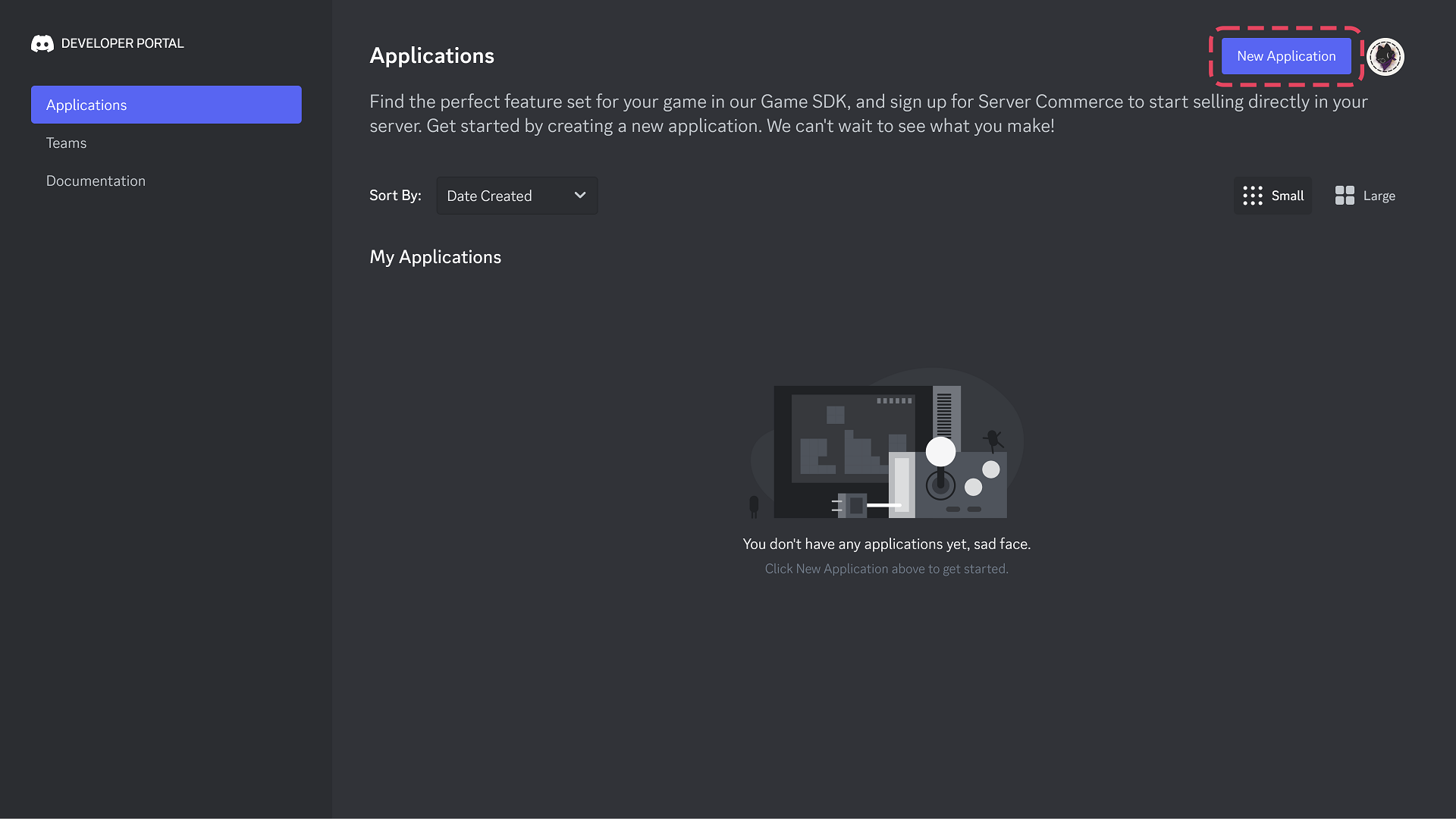
Create an application
Open the Discord Developer Portal, click New Application, and choose a recognizable bot name and avatar.
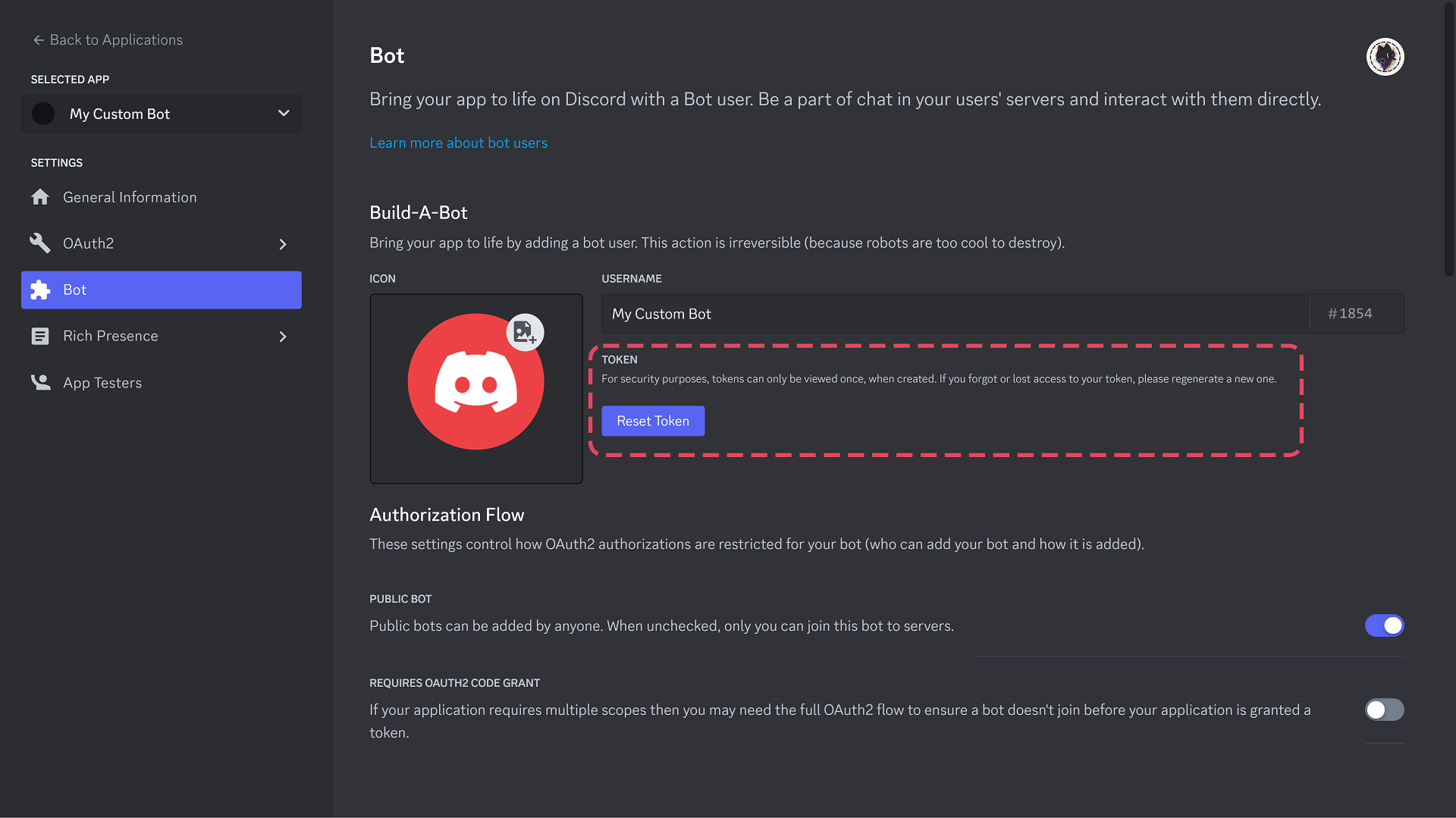
Create the bot and copy the token
Open Bot, create the bot user if needed, then copy or reset the bot token. Treat it like a password.
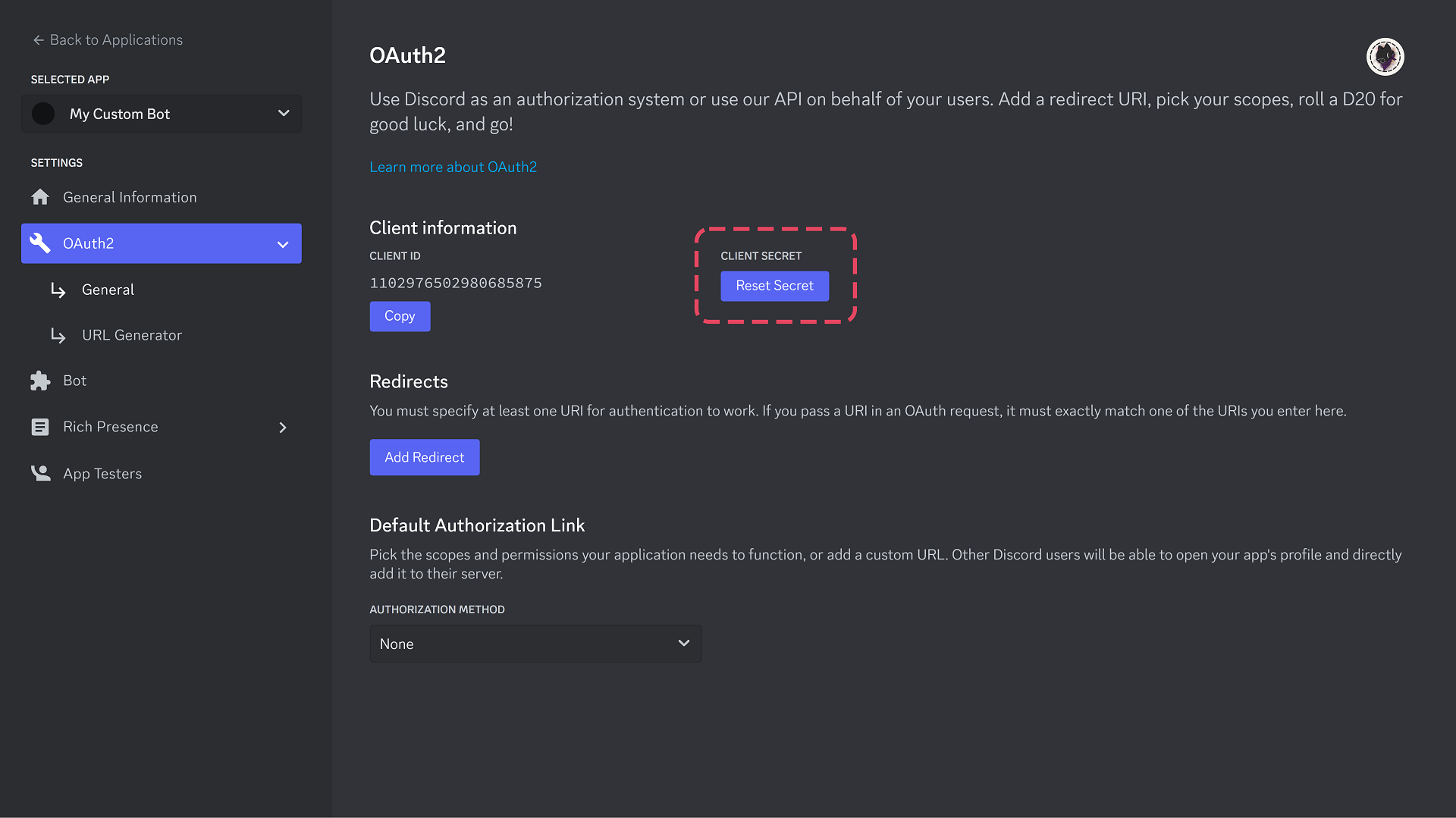
Copy the client secret
Open OAuth2 and copy the Client Secret.
Add the redirect URL
Still in OAuth2, add this redirect URL and save changes:
https://restorecord.com/api/callback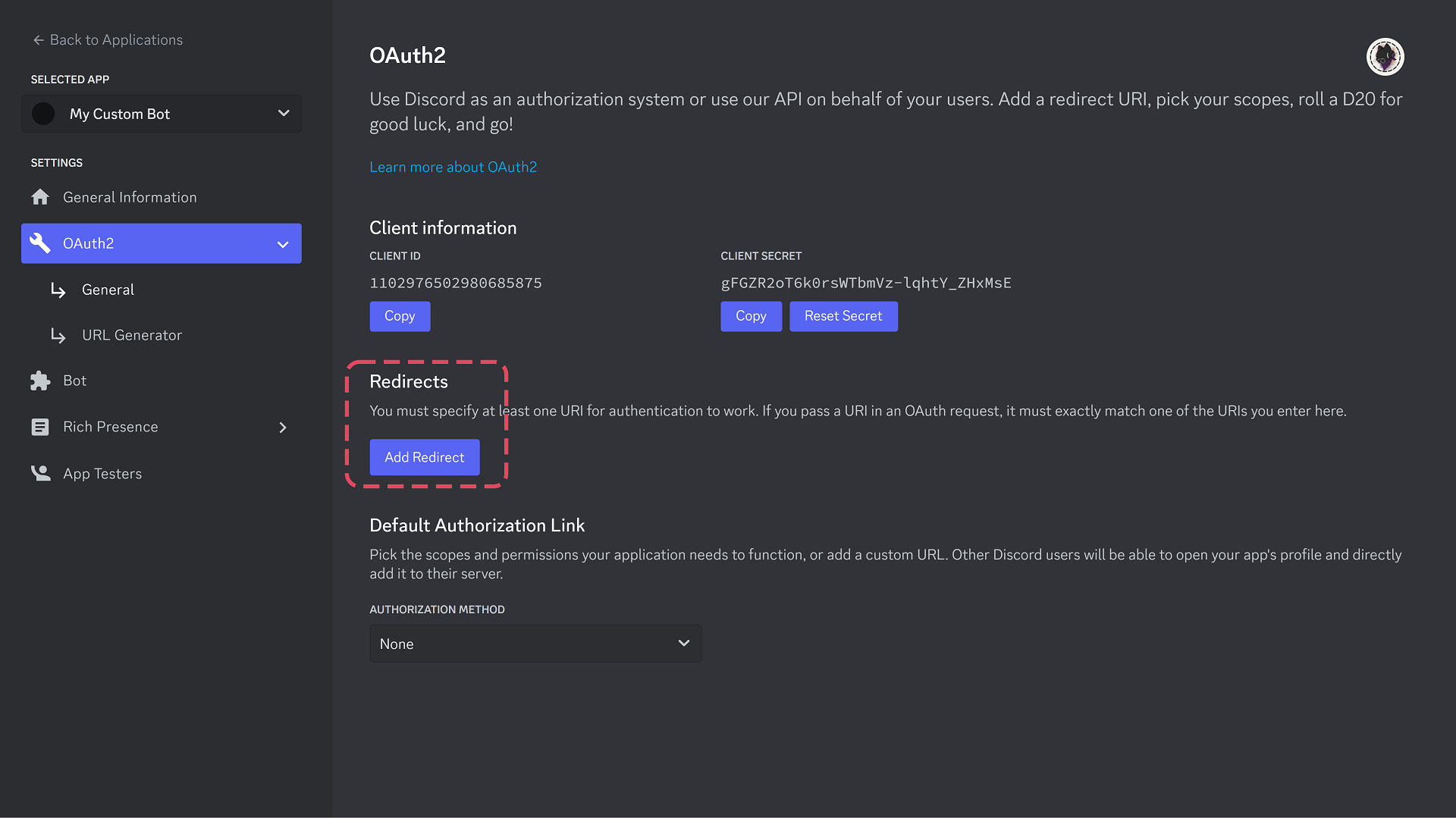
Paste credentials in RestoreCord
Return to the RestoreCord Dashboard and fill out the bot setup fields.
Slash commands are loaded automatically after the bot is connected. You do not need to register commands manually in Discord.